
You've probably heard the horror stories. A parent discovers their 14-year-old stumbled into a server filled with explicit images. A school admin sets up a Discord for their after-school coding club and within a week, someone posts something wildly inappropriate. A gaming community meant for all ages becomes a magnet for spam bots and scam links.
Discord is an incredible platform — but out of the box, it's not exactly built for younger audiences. The good news? With the right settings and tools, you can create a server that's genuinely safe for families, teens, and younger members without turning it into a ghost town nobody wants to join.
Here's exactly how to do it, step by step.
Why Discord's Built-In Tools Aren't Enough
Let's start with what Discord gives you for free. The platform has made real progress on safety — Family Center lets parents see which servers their teens join, AutoMod can filter keywords and spam, and the explicit content filter scans DMs for inappropriate images.
That's a solid foundation. But if you've ever actually managed a server with younger members, you know there are massive gaps.
AutoMod catches text-based problems pretty well. Type a slur? Blocked. Spam a bunch of invite links? Caught. But what about someone posting an NSFW image in your general chat at 2 AM when no moderators are online? AutoMod doesn't scan images. Discord's built-in explicit content filter only works on DMs — not server channels. That means your carefully curated family-friendly space is exactly one image upload away from a very bad day.
That's the gap where third-party moderation bots become essential, not optional.
Step 1: Lock Down Your Server Settings
Before adding any bots, get your server's native settings right. These are the foundations that everything else builds on.
Verification Level — Set this to at least "Medium" (account must be registered for 5+ minutes) or "High" (must be a member of the server for 10+ minutes before posting). This stops drive-by spam accounts. For a family-friendly server, "High" is the sweet spot.
Explicit Content Filter — Under Server Settings → Safety Setup, set this to "Scan media content from all members." This uses Discord's own scanning on media uploads, though it only catches the most obvious violations.
Default Notification Settings — Set to "Only @mentions." Nobody wants their phone buzzing 200 times a day, and notification overload drives members away.
Channel Permissions — New members shouldn't be able to post images, embed links, or use external emojis right away. Create a "verified" role that unlocks these permissions after they've agreed to your rules and been in the server for a bit.
Step 2: Set Up AutoMod Properly
Discord's AutoMod is genuinely useful for text-based moderation. Here's a configuration that works well for family-friendly servers.
Enable the Commonly Flagged Words lists — turn on all three: Insults and Slurs, Sexual Content, and Severe Profanity. You can exempt specific words that get false-flagged in your community's context.
Create Custom Keyword Rules for anything specific to your server. Running a Minecraft community? You probably want to block common grief-related insults that the default lists miss. School server? Block terms related to drugs and alcohol.
Set up Mention Spam protection to block messages that tag more than 5 unique users. This stops the most common form of harassment in younger communities.
Enable Spam Message Content filtering. This uses Discord's ML model to catch spam patterns even when they don't match specific keywords.
The limitation is still images. AutoMod is blind to visual content. That's where things get interesting.
Step 3: Add AI-Powered Image Moderation
This is the single most important step for any family-friendly server, and it's the one most admins skip because they don't realize the gap exists.
Think about how your community actually works. Members share memes, screenshots, fan art, reaction images — visual content makes up a huge portion of server activity. Without image moderation, every single one of those uploads is unscreened.
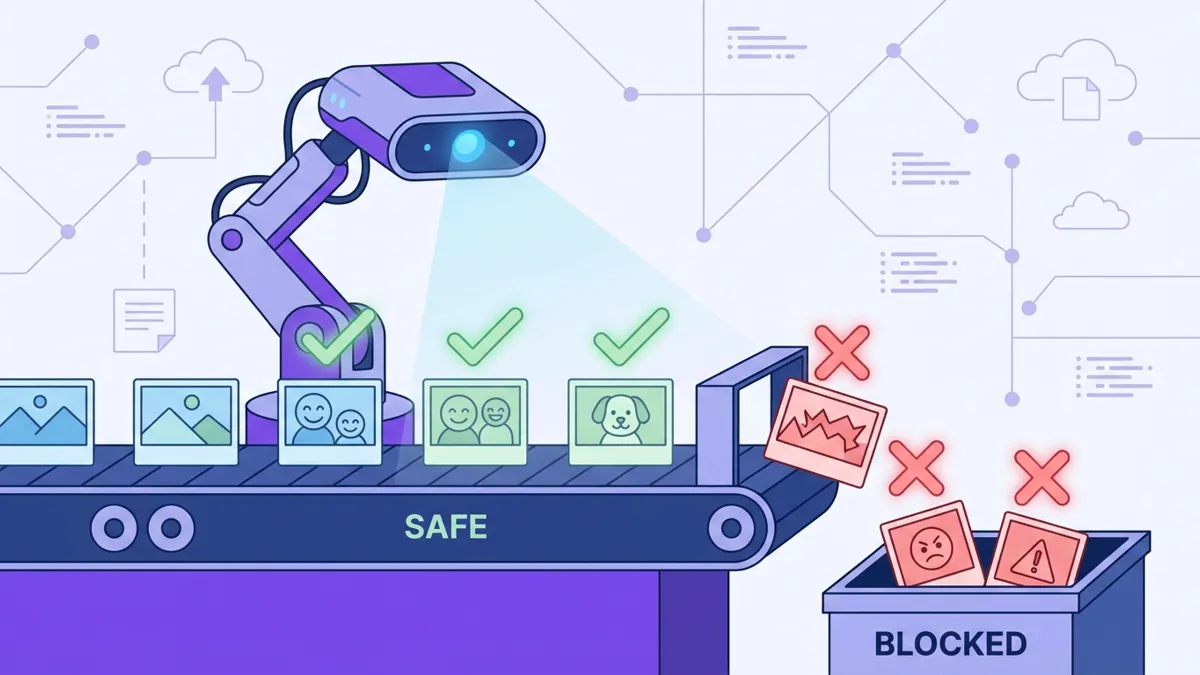
SfwBot fills this gap with AI that scans every image, GIF, and video uploaded to your server in milliseconds. If the content is inappropriate, it gets deleted before most members even see it — and the uploader receives a warning automatically.
What makes this particularly useful for family-friendly servers is the adjustable sensitivity threshold. Running a server for 13-year-olds? Crank the sensitivity up. Managing a community for college-age gamers who just want to keep things mostly clean? Set it lower. You're in control of where the line is.
SfwBot's AI analyzes every image, GIF, and video in milliseconds — catching inappropriate content before your members see it. Sensitivity is fully adjustable per channel.
The free tier gives you 5,000 image scans per month, which covers most small to mid-sized servers without spending a cent. Spam protection and link blocking are completely free on all plans, no credits needed.
Step 4: Block Dangerous Links
Kids click links. That's just reality. And Discord servers are a favorite target for phishing campaigns — fake Nitro giveaways, IP grabbers disguised as game invites, and links to explicit websites.
Discord's AutoMod can block known malware links, but it doesn't cover adult content sites or many phishing domains. You need an extra layer here.
SfwBot's link protection blocks both scam/phishing URLs and adult website links using blocklists that refresh every 24 hours. This feature is completely free — no credits, no premium tier required. Just enable it and forget about it.
For additional protection, disable the "Embed Links" permission for new members so they can't post clickable link previews until they've been verified. This alone stops a surprising number of spam attacks.
Step 5: Build a Fair Punishment System
Here's where a lot of family-friendly servers get it wrong. They either go too harsh (one mistake = ban) or too lenient (no consequences at all). Neither works.
Young members make mistakes. Sometimes a 13-year-old shares something inappropriate because they thought it was funny, not because they're malicious. You need a system that distinguishes between honest mistakes and deliberate bad behavior.
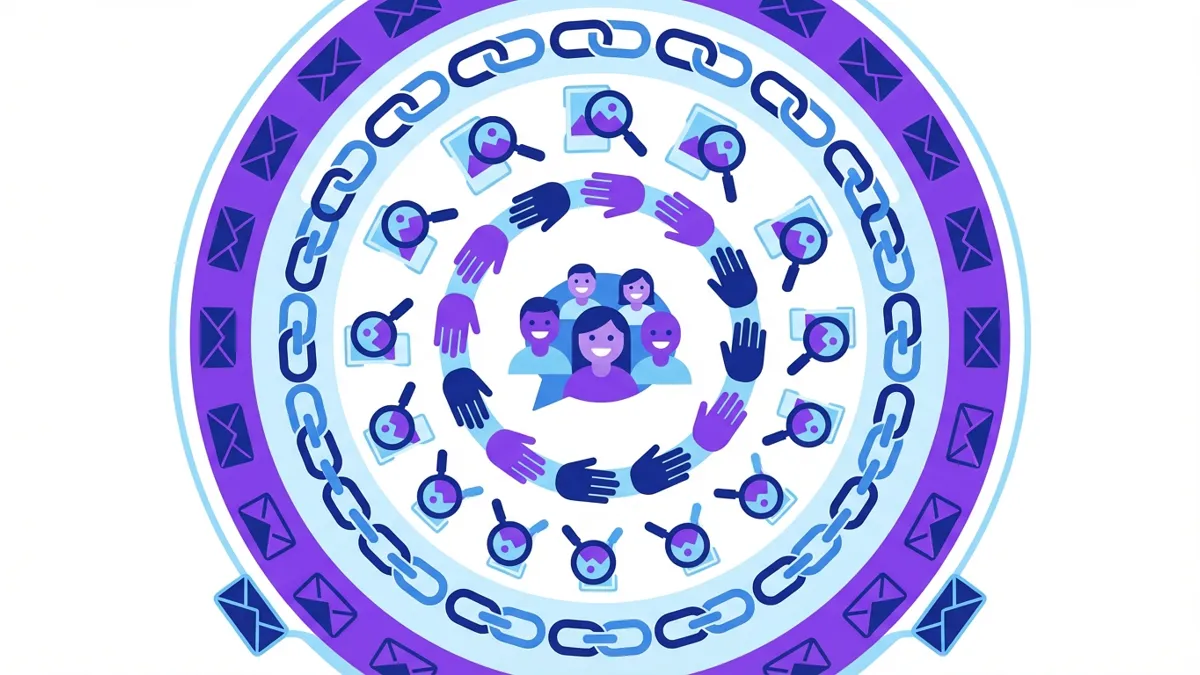
A trust-based system works best. SfwBot's Trust System gives every member a reputation score starting at 100 points. Violations deduct points. When someone's score drops too low, they receive strikes — and strikes escalate from warnings to timeouts to bans.
The beauty of this approach is fairness. A member who accidentally triggers a filter once barely notices the point deduction. Their trust recovers over time. But a bad actor who repeatedly posts inappropriate content burns through their trust fast and gets removed before they can do real damage.
Step 6: Set Up Proper Channel Structure
Channel organization matters more than most admins realize, especially for younger audiences.
Keep your channel list simple and intuitive. A confused new member who can't find the right channel is more likely to post in the wrong one. Here's a structure that works well for family-friendly servers:
Welcome & Rules — Read-only channels with server rules and a brief guide on how the server works. Pin the most important rules.
General Chat — Your main text channel. Apply the strictest moderation settings here since it's where most activity happens.
Topic Channels — Specific channels for your community's interests (games, art, homework help, etc.). You can set different moderation sensitivity per channel — maybe the art channel is slightly more relaxed than general.
Voice Channels — Labeled clearly by purpose. Consider having a "family-friendly voice" channel with stricter rules and an "older teens" channel if your community has a mixed age range.
Mod-only Channels — A private channel where your moderation team can discuss issues, review flagged content, and coordinate responses.
Step 7: Recruit and Train Your Mod Team
No amount of automation replaces human judgment entirely. You still need moderators — but AI tools like SfwBot dramatically reduce their workload by handling the repetitive, exhausting parts of moderation.
For a family-friendly server, your moderators need specific qualities beyond just being active. They should be patient with younger members, empathetic to the unique situations that come up in teen communities, and comfortable enforcing rules consistently without being power-hungry about it.
A few practical tips that make a difference:
Set clear moderator guidelines. What warrants a warning vs. a timeout? When should a mod escalate to an admin? Write this down and pin it in your mod channel.
Use moderation logs religiously. SfwBot's web dashboard shows exactly what's been caught, when, and by which filter. This gives your mod team visibility without requiring them to monitor every channel 24/7.
Rotate mod schedules if possible. Moderator burnout is real — especially in family-friendly servers where the emotional weight of protecting younger members adds up. We wrote a whole post about this if you want to dig deeper.
Step 8: Communicate Safety to Parents
If your server includes members under 16, consider creating a public-facing document or channel that explains your safety measures. Parents who can see that you're running AI image moderation, keyword filters, link protection, and a fair punishment system are far more likely to let their kids participate.
Discord's Family Center lets parents connect to their teen's account and see which servers they've joined, who they're messaging, and how active they are — all without reading actual message content. Encourage parents in your community to set this up.
The Bottom Line
Building a family-friendly Discord server isn't about slapping on a few settings and hoping for the best. It's about layering multiple safety systems — Discord's native tools, AutoMod for text, AI image scanning for visual content, link protection, and a fair trust system — so that no single failure point leaves your community exposed.
The good news is that this isn't as complicated or expensive as it sounds. Discord's built-in tools handle the basics. SfwBot covers the critical image moderation gap with a generous free tier (5,000 scans/month plus free spam and link protection). And a well-trained mod team ties everything together with the human judgment that automation can't replicate.
Your members — and their parents — deserve a space where they can participate without worrying about what might show up in the next message. That's worth the 15 minutes it takes to set things up properly.